
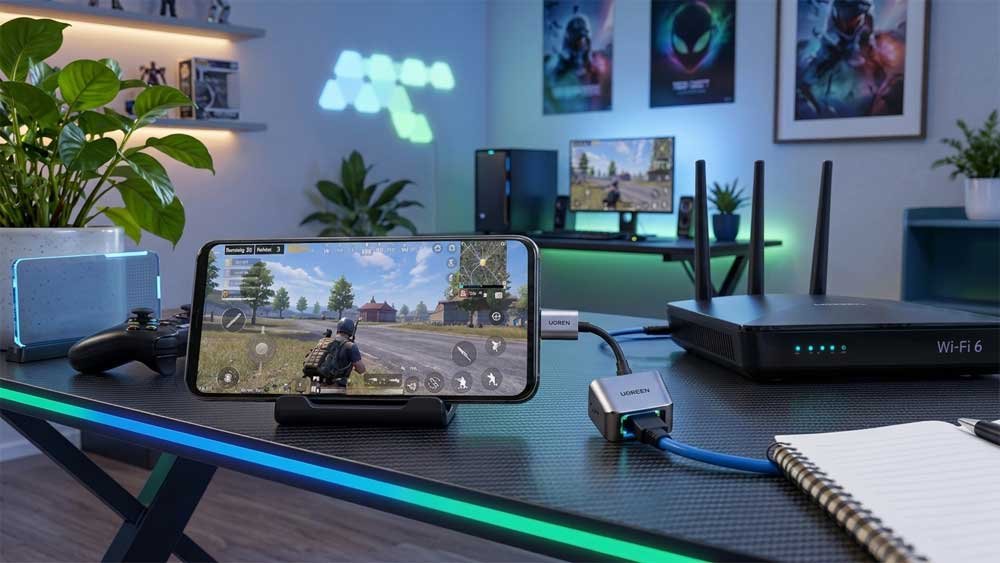
High ping can make online games frustrating, but you don’t always need a faster internet plan or expensive gaming hardware to improve your connection. These simple adjustments can help reduce lag and make your matches more stable.
Ping measures how long data takes to travel between your device and a game server and back. It’s measured in milliseconds (ms), and lower is generally better.
As a general reference:
- Under 30 ms: Excellent.
- 30–60 ms: Very good.
- 60–100 ms: Playable, but delays may be noticeable.
- Above 100 ms: Lag becomes more noticeable, especially in competitive games.
Jitter (ping fluctuations) and packet loss also matter. A stable connection is often better than one with a lower but constantly changing ping.
1. Use an Ethernet Cable
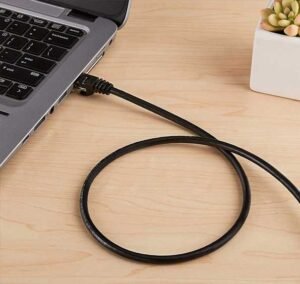
Connecting your PC or console directly to the router is one of the easiest ways to improve connection stability.
Ethernet avoids wireless interference and usually delivers more consistent latency than Wi-Fi. A Cat5e or Cat6 cable is enough for most gaming setups.
🎮 A simple upgrade for your setup. A Cat6 Ethernet cable can help provide a more stable connection between your router and gaming device.
If a cable isn’t practical, try moving closer to your router and using the 5 GHz Wi-Fi band.
2. Stop Background Downloads
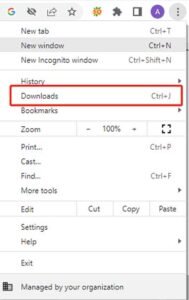
Game updates, streaming, cloud backups, and downloads can compete with your game for bandwidth.
Before playing:
- Pause downloads in Steam, Epic Games, and other launchers.
- Check for Windows or console updates.
- Pause cloud backups and file synchronization.
- Avoid large downloads or uploads on other devices.
You don’t always need faster internet. Sometimes, freeing up your existing connection is enough.
3. Choose the Closest Game Server
The farther the server, the longer data usually takes to travel.
Whenever possible, select a server in your region instead of relying entirely on automatic matchmaking. Also, check whether the game offers a ping limit or server selection option.
A nearby server isn’t guaranteed to be the fastest, but it’s usually the best place to start.
4. Optimize Your Wi-Fi and Router
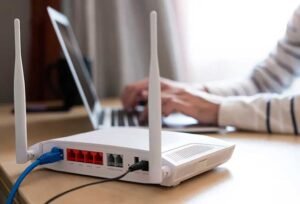
If you can’t use Ethernet, a few changes can improve wireless performance:
- Use 5 GHz Wi-Fi instead of 2.4 GHz when possible.
- Try 6 GHz if your router and device support Wi-Fi 6E or Wi-Fi 7.
- Keep the router away from walls and physical obstacles.
- Avoid placing it near equipment that can cause interference.
- Restart your router if the connection becomes unstable.
- Keep its firmware updated.
Wi-Fi 7 can improve wireless performance, but it isn’t a guaranteed solution for high ping. A wired connection remains more consistent.
5. Check for Bufferbloat
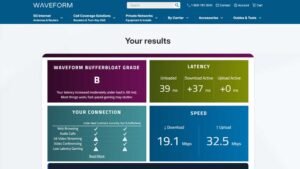
Ever noticed your ping jumping whenever someone starts downloading a large file? That could be bufferbloat. It happens when your router builds up queues of network traffic, delaying game data even when your internet speed seems fine.
You can check for this using a Waveform bufferbloat test.
If the results show high latency under load, check whether your router supports QoS or Smart Queue Management (SQM). These features can help prioritize traffic and reduce delays.
6. Check Your Internet Provider
If your ping is still high with Ethernet, background downloads paused, and the correct server selected, the problem may be your internet provider’s routing.
Contact your provider if you experience persistent high latency or packet loss across multiple games. A VPN may occasionally help if it provides a better route to a specific game server, but it can also increase ping. Test it before relying on it.
Also, changing DNS providers such as Cloudflare (1.1.1.1) or Google (8.8.8.8) generally won’t reduce your ping during an active match.
Quick Checklist
Before spending money on new hardware, try these steps:
- Connect through Ethernet.
- Pause background downloads and updates.
- Select the closest game server.
- Optimize your Wi-Fi if you can’t use a cable.
- Test for bufferbloat if ping spikes during downloads.
- Contact your internet provider if the problem persists.
Final Thoughts
Lowering ping doesn’t necessarily require a new router or a more expensive internet plan. Start with Ethernet, reduce network congestion, and make sure you’re connecting to the right game server.
A stable connection is often more important than chasing the lowest ping number.
As an Amazon Associate, QG Reloaded earns from qualifying purchases.