

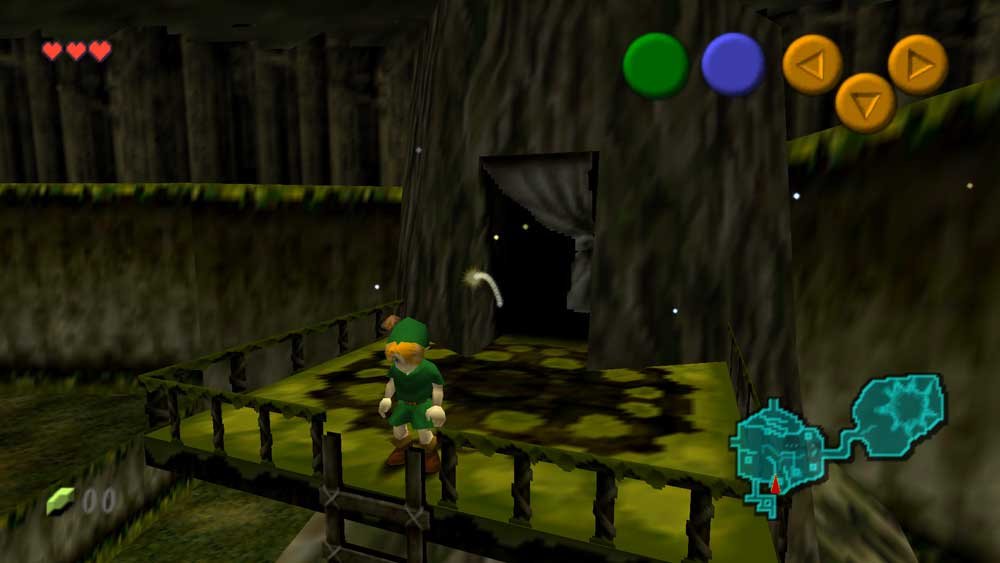
To play Zelda: Ocarina of Time natively on PC in 4K and 60 FPS+ using Ship of Harkinian (SoH), you do not need an emulator. The project runs directly on Windows, Linux, or Mac with full support for ultra-widescreen resolutions, high-definition texture packs, and uncapped frame rates.
The exact same setup process applies to Majora’s Mask, using its sister port project 2Ship2Harkinian..
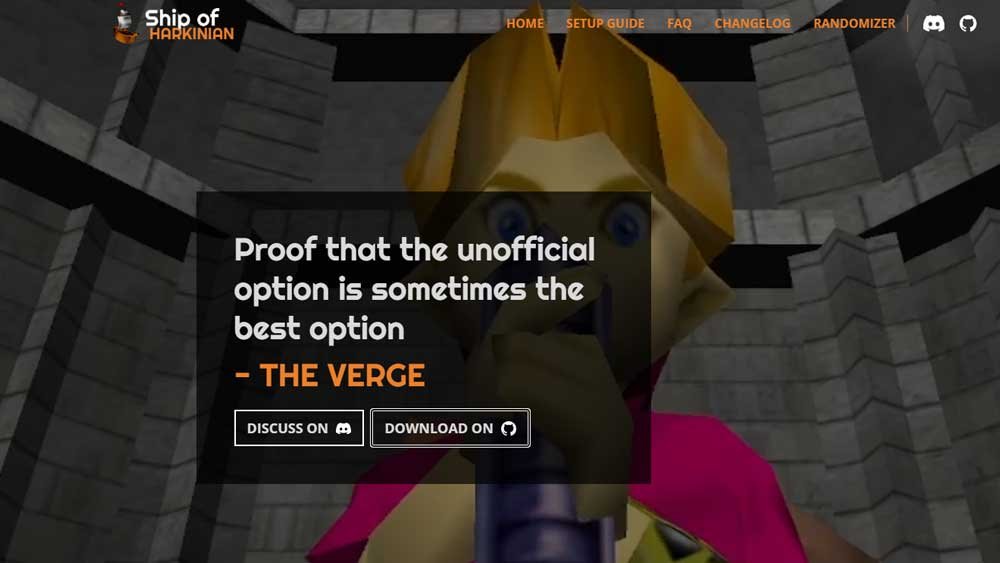
Follow this practical step-by-step guide to get the game running in just a few minutes:
1. What You Need (Prerequisites)
- The Correct ROM: You need the original game ROM file. For Ocarina of Time, the most recommended file is the GameCube Debug version (Master Quest) or the Nintendo 64 (US v1.0) ROM in
.z64format. - Legal Note: You must dump this file directly from your own original game cartridge.
2. Step-by-Step Installation and Setup
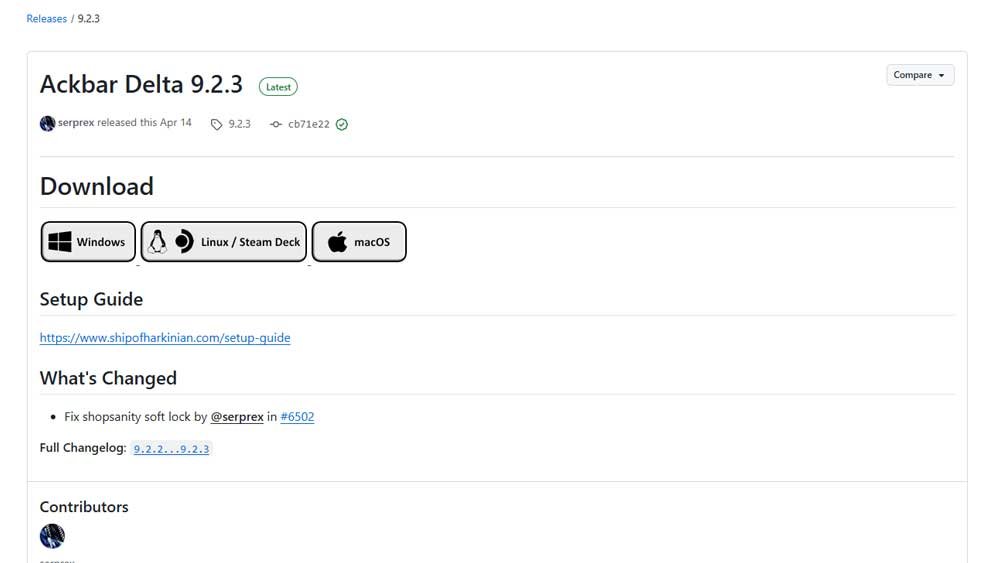
- Download Ship of Harkinian: Visit the official Ship of Harkinian website and download the latest release build for your operating system (e.g., Windows).
- Extract the Files: Create a new folder on your PC (e.g.,
C:\Games\Zelda SoH) and extract the full contents of the downloaded.zipfile into it. - Place the ROM: Copy your original
.z64ROM file and paste it into the exact same folder where you extracted Ship of Harkinian. - Generate Game Assets: Double-click the
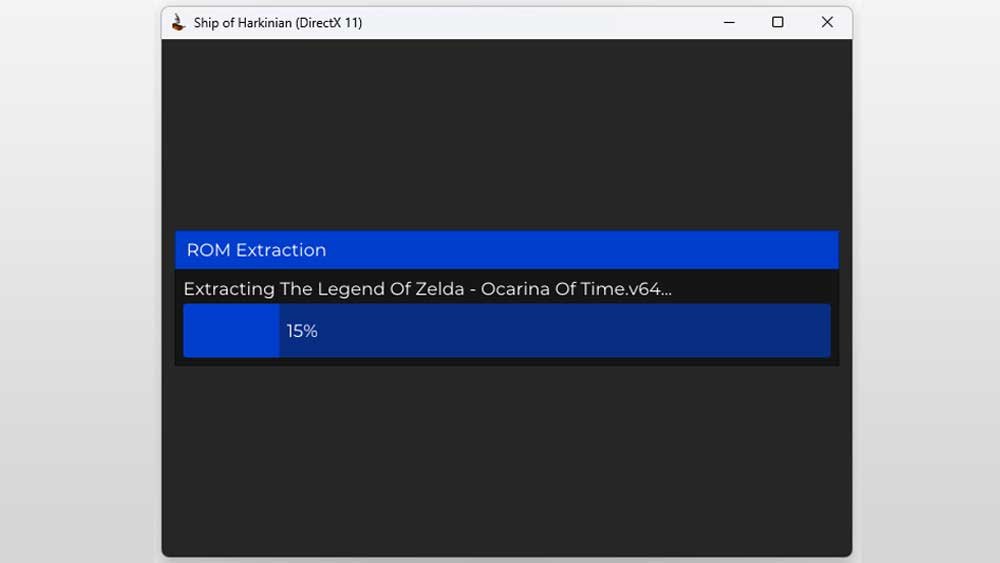
soh.exeexecutable. On the first launch, a command window will automatically open to scan the folder, validate your ROM, and extract the original visual and audio assets. - Launch: Once the extraction completes, the game will automatically launch in a new window.
3. Setting Up 4K, 60 FPS+, and Visual Enhancements
With the game running, press the ESC key on your keyboard to toggle the floating configuration menu (Soh Menu). Use your mouse to navigate through the tabs:
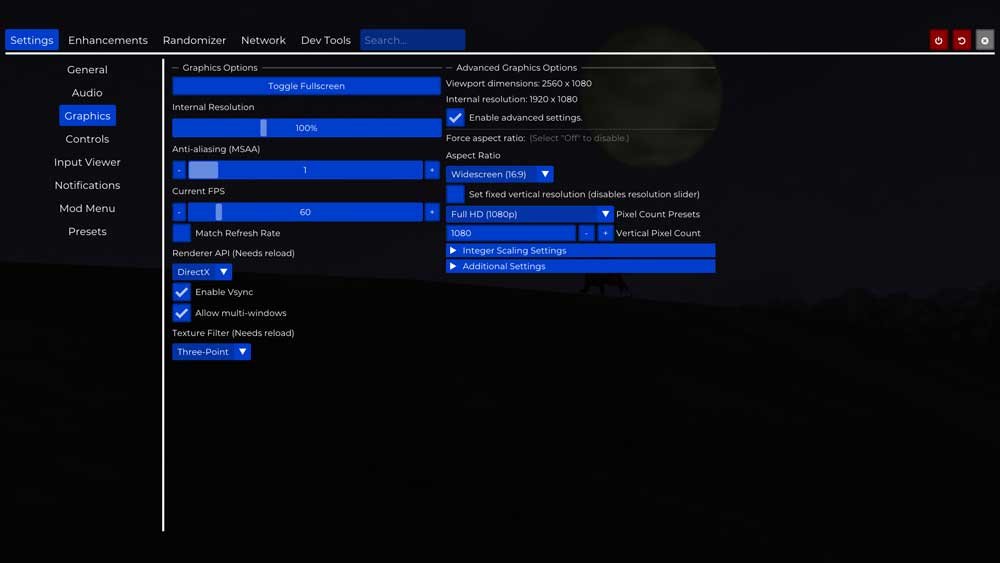
- Enable 60 FPS+: Go to Settings > Graphics > Match Refresh Rate to sync with your monitor’s hertz rate, or manually set the FPS slider to 60, 120, or 144+ FPS. The game engine automatically adjusts game speed so physics do not speed up.
- Enable 4K (Native Resolution): The engine scales to your native display resolution. Go to Settings > Graphics and switch to Fullscreen. On a 4K monitor or TV, 3D models render natively in 2160p, eliminating aliasing.
- Controller Setup: Connect an Xbox, PlayStation, or Switch controller to your PC. Go to Settings > Controller and click Remap Controls to bind your inputs. Analog sticks feature full 360-degree precision, bypassing original N64 hardware deadzones.
4. How to Play Majora’s Mask
The setup process is identical: use the launcher from the 2Ship2Harkinian project paired with an US Nintendo 64 Majora’s Mask ROM. The config menu (ESC), resolution scaling, and high-FPS options operate using the same framework.

![Read more about the article Elden Ring: Where to Find Smithing Stone [6]](https://qgreloaded.com/wp-content/uploads/2026/09/Elden-Ring-Smithing-Stone-6-300x169.jpg)